01 / PREPARATION
Start with the exact original file.
This guide covers WinOLS 5 installations with the CSV/JSON map-list update feature. Check that your installed version supports this feature. You need your completed ECTMAPPACK download and the exact original ORI uploaded for that request. If you have not submitted a file yet, use the ORI preparation checklist.
Before downloading, open Preview map list in the completed request to check names, categories and dimensions for free. Learn what a WinOLS MapPack contains if this is your first import.
A matching ECU name, vehicle model or software label alone does not establish a match. Different reads can use different layouts or addresses. Use the same file bytes as your upload. If you cannot confirm the file, check the request and contact support before importing.
Map definitions can include names, categories, addresses, dimensions and available axis or scaling information. Coverage depends on the exact file. The JSON is not firmware to flash to an ECU.
02 / IMPORT
From download to organized maps.
Check Free Preview, then download.
Sign in, open your completed request and select Preview map list. Browse the available names, categories and dimensions before unlocking. Previewing is free; one credit is charged when you first download the completed MapPack. Download its result ZIP and keep the request details with the original ORI.
Extract the ZIP.
Extract the archive to a local folder and locate the MapPack JSON. If a separate manifest JSON is included, it describes the download package; it is not the map-definition file to import.
Open the matching original in WinOLS.
Open the project containing your exact uploaded original. If you need a new project, create it using WinOLS's normal binary-file import workflow and that original file. Do not load the MapPack JSON as the project binary.
Save a project copy.
Save a separate copy before updating the map list. The updater can update existing definitions as well as add definitions, so a copy gives you a clear point to return to.
Choose the CSV/JSON map-list updater.
In a compatible WinOLS 5 installation, go to Project → Ex- & Import → Update map list on basis of CSV/JSON file. Select the extracted MapPack JSON and follow the dialog. Use this feature rather than KP MapPack import or raw binary import.
Review the imported definitions.
Check map categories, names, addresses and dimensions. Open several maps and inspect any available axes, units, factors and offsets. Compare the result with your original data before calibration work.
Save the checked project.
Save your project once the definitions look consistent. Keep the original download and file together for reference. Avoid importing repeatedly into the same working project while diagnosing a problem.
03 / REVIEW
Check more than the map names.
A familiar name does not prove that a definition is correct for the binary. Check the location, row and column count, data organization and displayed values together. Axis units and scaling are supplied only where available; a missing field is not permission to guess it.
A real result in WinOLS.
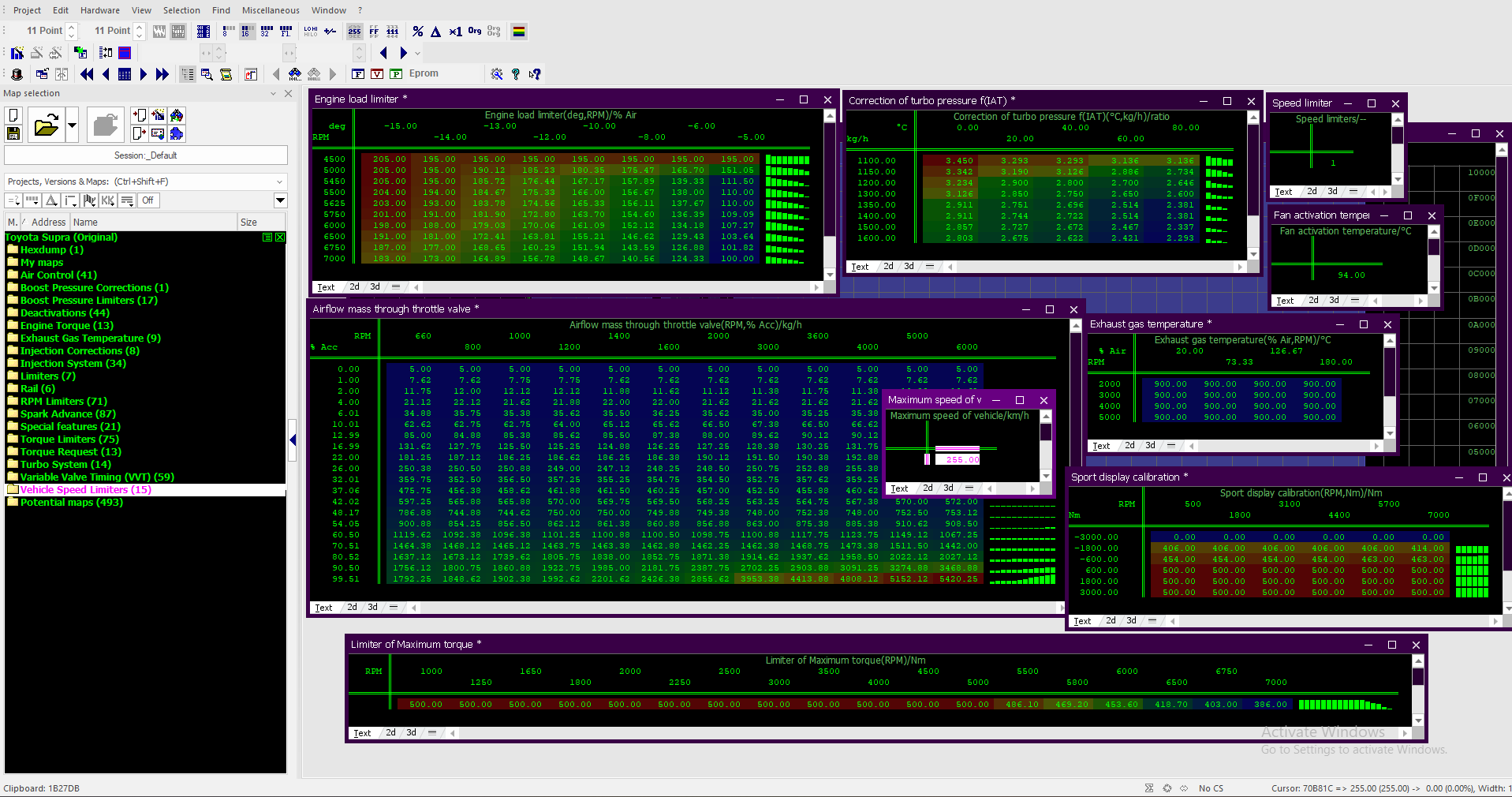
First confirm the original file and the JSON belong to the same request. Do not manually invent address offsets, factors or multipliers to make a map look plausible.
04 / TROUBLESHOOTING
If the result does not look right.
| What you see | What to check |
|---|---|
| File rejected or no definitions | Extract the ZIP first. Select the actual MapPack JSON, not a manifest, ZIP, KP file or ECU binary. |
| No CSV/JSON menu option | Confirm your installed WinOLS version and available features against EVC's documentation. Feature availability can differ between WinOLS 5 versions. |
| Axes or units missing | Check what was supplied for this exact result. Some definitions do not include every axis or scaling field. |
| Odd values or wrong locations | Confirm the binary is the exact uploaded original. Check data organization and supplied scaling; ask support if the mismatch remains. |
| Duplicate or changed definitions | Return to the saved copy and review the updater's choices. Existing definitions may be updated; avoid repeated imports during troubleshooting. |
For support, include the request ID, WinOLS version and a screenshot of the issue in the portal chat.
05 / COMMON QUESTIONS
A few useful distinctions.
Does importing the JSON tune the ECU?
No. It imports map definitions into your WinOLS project. It does not provide a modified calibration binary or flash your ECU.
Can I reuse the JSON on another file with the same ECU?
Do not assume compatibility. Use the exact file associated with the request. Another read or software version can have a different layout.
Should I use “Import MapPack” for this JSON?
Use the CSV/JSON map-list update feature described above. KP MapPack import is a different workflow.
06 / REFERENCES
Check the official WinOLS documentation.
Menu wording can differ by interface language. ECTMAPPACK is an independent service; WinOLS is a trademark of its owner.