01 / THE BASICS
What does a WinOLS MapPack do?
A WinOLS MapPack describes calibration maps inside an ECU or TCU file. It helps organise selected areas into named maps, making the project easier to navigate and inspect than an unlabelled binary view.
ECTMAPPACK supplies file-specific JSON map definitions for import into a WinOLS project containing the corresponding original. The definitions help WinOLS display named calibration maps within that data. You still need the ECU file itself; a MapPack is not a tuned BIN.
Already have your download? Follow our WinOLS 5 JSON import guide for the import steps.
02 / FILES AND DEFINITIONS
Three files with different roles.
| File | What it contains |
|---|---|
| ECU binary | The underlying data used in your project. Its contents and layout depend on the reading tool and method. |
| MapPack | Definitions describing where selected maps are located and how they are represented. |
| Tuned file | A binary containing calibration changes. A MapPack import does not create those changes. |
The binary is the underlying data; the MapPack describes selected areas within it. Both must refer to the same file layout.
03 / INSIDE THE JSON
More than a list of names.
Available information varies by file and result. JSON definitions can include:
- Map names and categories.
- Start addresses, rows and columns.
- Data representation settings.
- X and Y axis definitions, where available.
- Units, factors and offsets, where supplied.
For example, a table may be organised by engine speed and another operating value. Its definition can describe the table location and size, together with the available axis and scaling information.
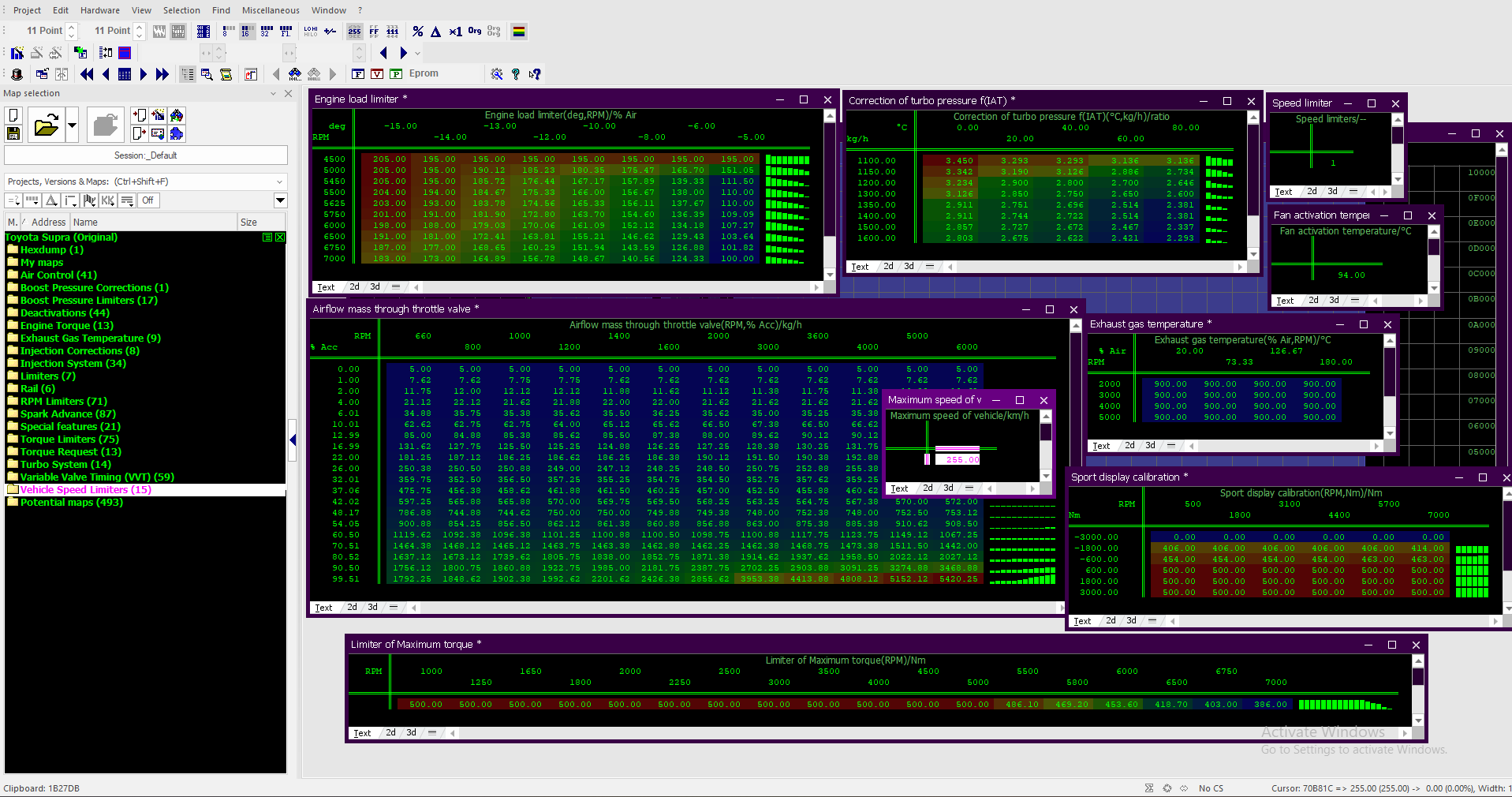
MapPacks do not all contain the same fields or map count. A category does not mean every possible map in that category has been identified.
04 / COMPATIBILITY
Match the read, not just the ECU name.
Two files can share a vehicle model or ECU family while using different software versions, layouts or read formats. A correct address in one file may point somewhere else in another.
Use the exact file associated with the MapPack request for your WinOLS project. Keep an unchanged copy and the request details together. A matching filename or ECU label alone does not establish compatibility.
Submit the original, unmodified ORI file. Keep that exact file as the basis of your WinOLS project. If you only have a modified file or cannot identify the original read, contact support before creating a request.
05 / YOUR WORKFLOW
From ORI to Free Preview, JSON and WinOLS.
The WinOLS MapPack generator and ORI check starts with your exact original file. A verified completed MapPack may be available immediately; other files require processing or support review. Coverage depends on the ECU, software and read layout.
Check your ORI, then create a request.
Start with the free ORI availability check, available with or without an account. Then create a MapPack request with the original file and its vehicle, ECU and software details. Keep an unchanged local copy.
Open Free Preview when the result is ready.
Open Preview map list in your request. Browse the map names, categories and table dimensions, or search for a map name. Where another published version is available, you can compare the lists and see newly added maps.
Unlock and download your MapPack.
Free Preview does not use a credit. One credit is charged when you first unlock/download the completed MapPack; repeat downloads for that request use the same entitlement. Extract the supplied ZIP and locate the map-definition JSON.
Import into the matching WinOLS project.
Open the project based on your exact uploaded ORI and follow the WinOLS 5 JSON import instructions. Review addresses, dimensions and any supplied axes or scaling before calibration work.
Previewing a completed map list is free. An eligible credit balance is required to submit a new request. MapPack availability is checked for the exact uploaded file.
Use the ORI preparation checklist before submitting, and see documented MapPack examples in WinOLS for a practical look at organised definitions.
For eligible projects, the online ECU Tuning Editor provides a browser workflow with table, 2D and 3D views. Open it from the job page after meeting that project's access requirements. Local drafts stay in the same browser; MOD BIN export does not include checksum correction.
06 / COMMON QUESTIONS
Before your first import.
Can I see the map list before unlocking?
Yes. When your result is ready, Free Preview shows map names, categories and dimensions without using a credit. The full map definitions are included in the unlocked download.
Can I edit supported maps in my browser?
Eligible projects can open in ECTMAPPACK Tuning Editor BETA. Explore table, 2D and 3D views, compare original and modified values, and edit supported maps. The editor does not flash the ECU or correct checksums.
Does a MapPack increase power?
Importing definitions does not change calibration values or apply a tuning stage. Calibration work is a separate step.
Can I use the JSON with any file from the same ECU?
Do not assume compatibility. Use the exact file associated with the request and check the definitions after importing.
Are axes, factors and units always included?
Only where supplied for that result. Available information and map coverage vary with the file.
Where are the WinOLS import steps?
Our WinOLS 5 JSON import guide explains the CSV/JSON map-list updater and the checks to make afterwards. You can also consult the official EVC WinOLS manual.
ECTMAPPACK is an independent service. WinOLS is a trademark of its owner.