GET STARTED
Open the editor from your MapPack job.
Use your original ECU file.
Start with the ORI availability check or a request in your portal. Use the exact original read associated with the project. An availability result is not an instruction to modify or write the file.
Review the completed MapPack.
Open your job from My MapPacks. When a result is ready, use the free map list preview to inspect names, categories and dimensions. Follow the credit and access controls shown on that job.
Choose the available Tuning Editor action.
Open the editor from the eligible job page. The project supplies the original and its map definitions. A standalone ORI or a shared ECU name alone does not guarantee that the editor can open it.
For a visual introduction before signing in, visit the online ECU Tuning Editor overview. Its public screenshots demonstrate a real project without opening or changing your files.
FIND YOUR CALIBRATION
Browse map categories and search by name.
The map explorer groups definitions by function. Expand a category, then select a named map. Use the search field to narrow the list when the project contains many definitions. Map dimensions, axes and units appear where they are supplied by the project definitions.
In our Audi A6 EDC17CP44 example, 316 definitions are organised into 21 categories. Examples include Boost Pressure Targets, Engine Torque, Injection Timing and Rail Pressure Targets. These are counts for that original file, not a coverage list for every EDC17CP44.
Several maps can have similar names. Read the selected definition and its context rather than assuming that every map with the same name serves the same operating condition. The Hexdump explorer provides a read-only view of the binary.
READ THE SAME MAP IN DIFFERENT WAYS
Use table, 2D and 3D map views.
Choose a supported map and switch its display mode to inspect the data. These views show the same calibration; a different view is not a different tuning file.
Table: inspect individual values.
Use the table to read cells against the available row and column axes. Check the units and scaling supplied by the definition before interpreting the numbers or making an edit.
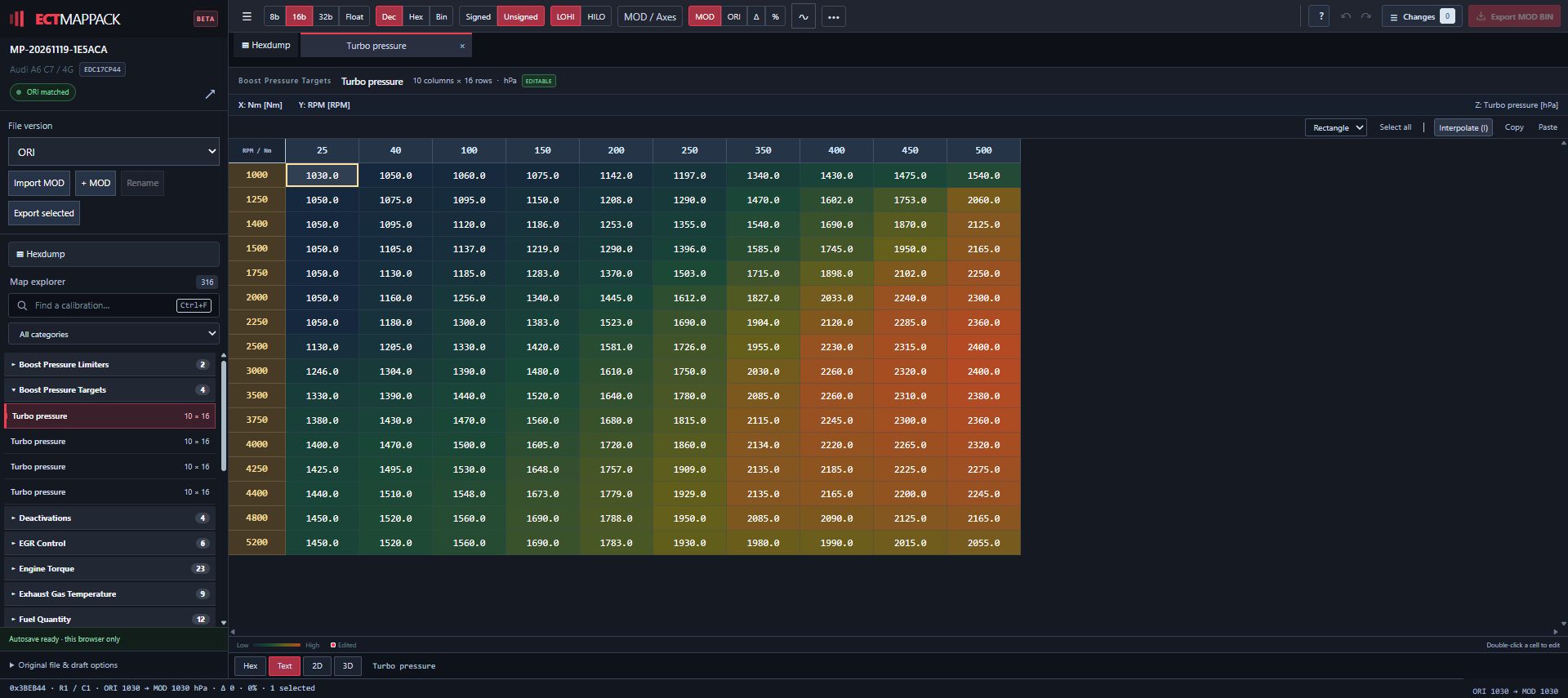
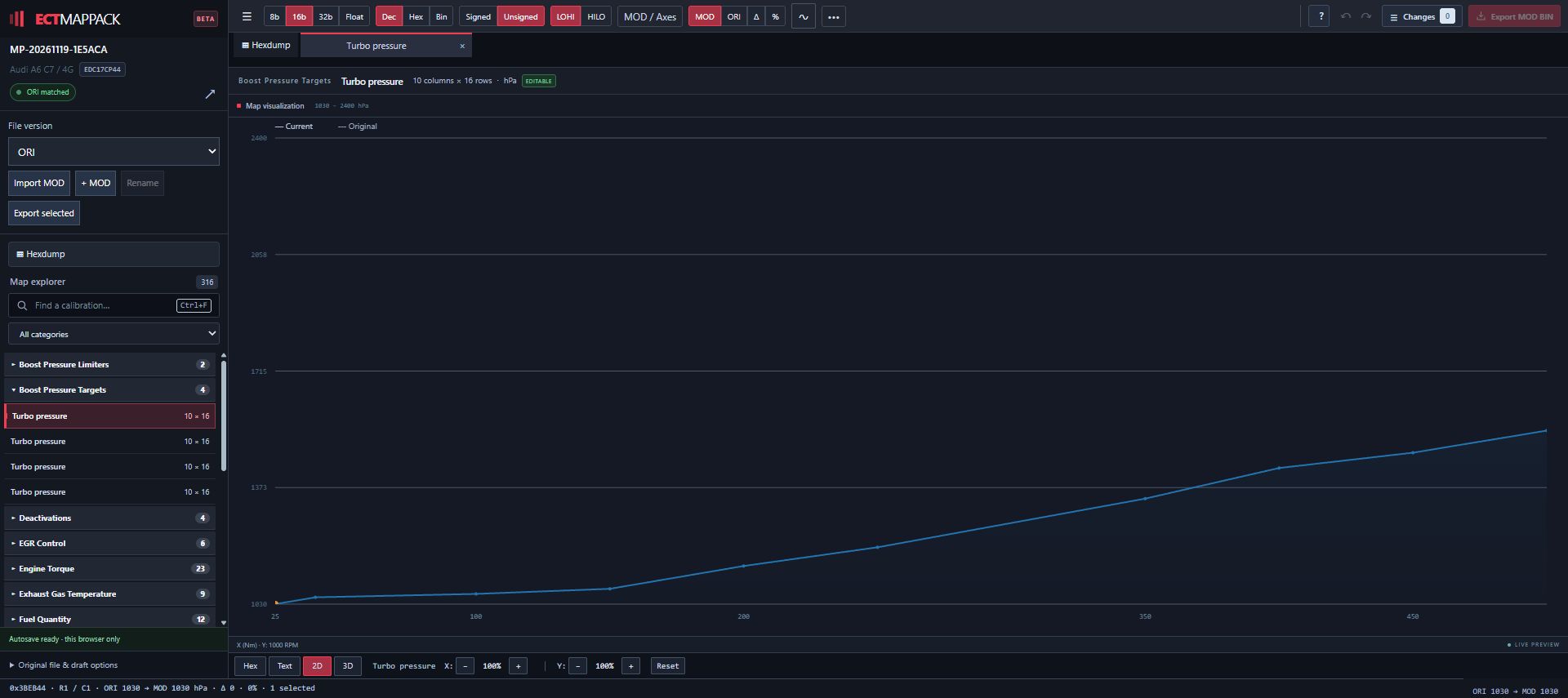
2D: inspect curves and transitions.
The 2D display helps you follow the shape of a supported map as curves. Use it alongside the table and the available axes when inspecting transitions between values.
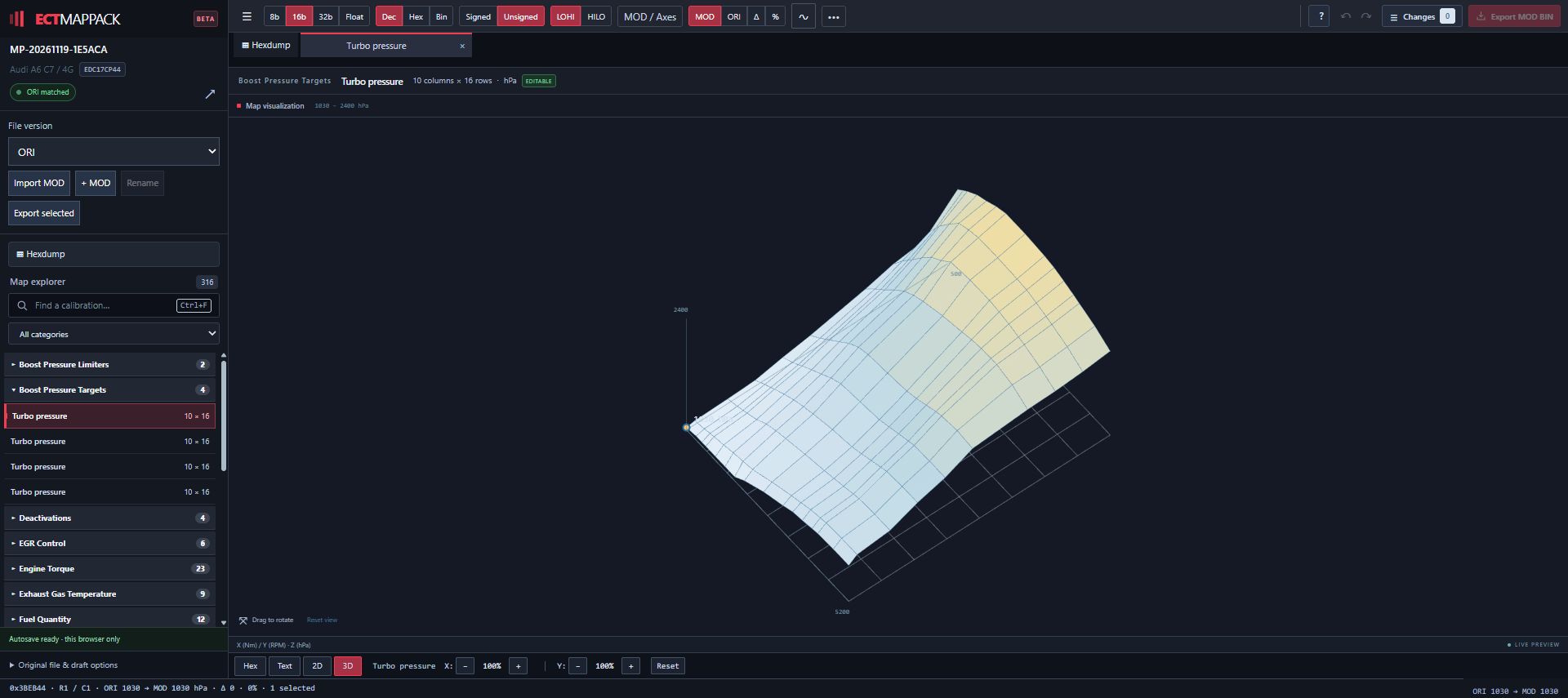
3D: inspect the surface.
Rotate the 3D view to examine the overall shape of a supported map. Return to the table for individual cell values. A smooth surface alone does not verify that a calibration is correct.
UNDERSTAND YOUR CHANGES
Compare ORI and MOD before exporting.
ORI represents the original values for the project. MOD represents the working modified values. Use the available ORI, MOD, difference and percentage display controls to review the relationship between them. Display controls help inspect data; they do not by themselves apply an edit.
For supported calibration cells, use the editor's selection and editing tools. Keep the selected range and the map's units in view. Undo and Redo let you review recent edits, while the change list helps you inspect what has changed before export.
Where Import MOD is available, use a compatible file for that original and project. Importing another vehicle's file or a different software layout is not a substitute for matching definitions.
The editor does not automatically choose tuning values. MapPack definitions identify and organise data; they are not a tuning stage or a ready-to-flash modification.
KEEP YOUR WORK
Local drafts and MOD BIN export.
Continue on the same browser and device.
Local autosave keeps a draft in that browser. Use the available draft controls to save or discard it. Drafts do not automatically synchronise to another computer, phone or browser, and clearing browser storage can remove them.
Review the change list, then export.
Check the original, the modified values and the intended changes. Use Export MOD BIN when available to save the working binary. Keep your original separate so you can identify the baseline used for the project.
MOD BIN export does not include checksum correction or ECU flashing. Those remain part of your appropriate external tool and verification workflow. The editor does not write to the vehicle.
The WinOLS MapPack download remains a separate output available through the portal's existing job and credit rules. Read the WinOLS JSON import guide if you prefer the desktop workflow.
COMMON QUESTIONS
When something is not available.
Why is there no editor action on my job?
Check that the job has a completed result and meets the project's editor access rules. Not every ORI or MapPack is supported. Use the portal's support messages with the job reference if you need help.
Why are some map details missing?
Available axes, units and views depend on the supplied definition. Do not infer missing scaling or reuse assumptions from another software version. Ask support about the specific map and project.
Why is my draft missing on another device?
Drafts are stored locally in the browser where you worked. Return to that browser and device. An account login does not synchronise the draft.
Is a MapPack the same as a modified ECU file?
No. A MapPack provides definitions for the original binary. A MOD BIN is the binary exported after supported edits. The MapPack and JSON guide explains the distinction.