Find the map you need.
Browse functional categories and search map names. Keep the map explorer open while moving between calibration tables.
- Search and category filters
- Map names, dimensions and units where defined
- Read-only Hexdump explorer
Open supported ECU calibration maps in your browser, directly from your job page. Explore table, 2D and 3D views, compare ORI and MOD values, and edit supported maps.
Real table, 2D and 3D views from our Audi A6 example project. Browse map categories, inspect values and see the shape of the same supported calibration map.
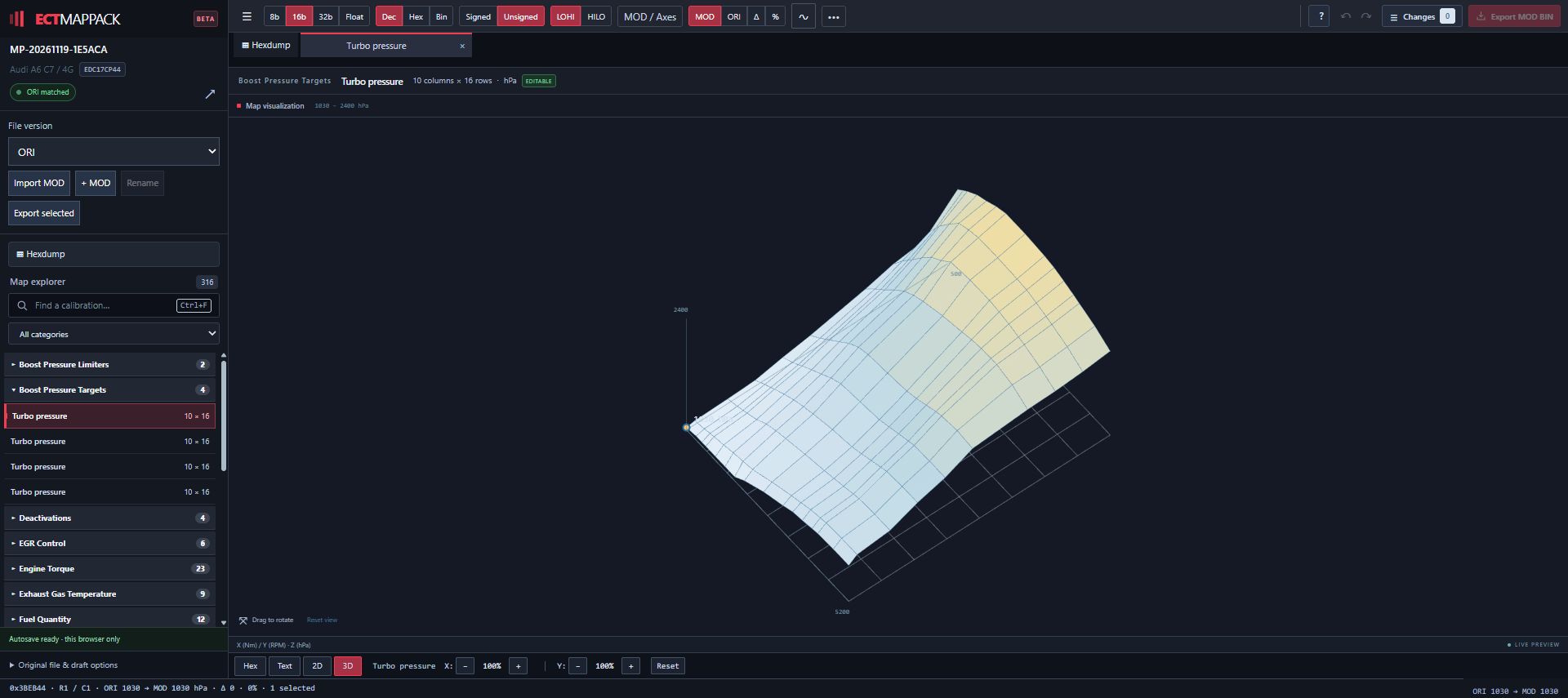
Actual example: 316 maps across 21 categories. Map counts and available tools depend on your original file. These images show the workspace; they do not edit a live project. Read the documented Audi A6 MapPack example.
A practical workspace for people who need to inspect calibration data, with the original always part of the workflow. Follow the step-by-step Tuning Editor guide for map views, ORI/MOD comparison, drafts and export.
Browse functional categories and search map names. Keep the map explorer open while moving between calibration tables.
Move between table values, 2D curves and a rotatable 3D surface to understand the shape of a supported map.
Compare ORI and MOD values, inspect differences and review the change list before exporting your work.
Work on supported calibration cells with selection tools, copy and paste, and supported interpolation controls.
Local autosave helps you continue on the same browser and device. Save or discard a draft using the editor controls.
Export the edited file as MOD BIN for your established tuning workflow. Review the changes and handle checksums using the appropriate external tool.
Check your original ECU file, then create a MapPack request inside the portal when you are ready.
Follow the request and inspect the free map list preview when a result is ready.
Use the existing portal credit flow. Your request keeps its original and available versions together.
Use the Tuning Editor action on an eligible job. Availability follows the project's existing access rules.
Keep using your WinOLS MapPack download and desktop workflow. Our WinOLS MapPack and JSON guide explains the definitions; the browser editor gives eligible projects another way to inspect and edit supported maps.
MapPack downloads remain available through the portal. Tuning Editor does not require the WinOLS desktop application to display its supported maps.
This is a BETA calibration workspace. It does not automatically tune your vehicle, replace professional verification, or implement every WinOLS function.
See a real MapPack in WinOLSThe online editor opens eligible projects through their job page, using the original file and its supported map definitions. A standalone ORI upload does not guarantee MapPack coverage or editor availability.
The screenshots demonstrate an example workspace. The public free map preview lists categories and map names without revealing the underlying map addresses or internal matching information.
Drafts are local to the same browser and device. Clearing browser storage can remove them. Export important work; there is no automatic cloud synchronization of local drafts.
No. Export produces a MOD BIN; it does not include checksum correction or ECU flashing. Review the changes and use the appropriate external tool and verification workflow before writing a file.
Your existing job, downloads, versions and credit access remain in the portal. Use the download or editor actions available for that project.
Use the messaging area in the portal so support can discuss the original file and the associated request with you.
Check MapPack availability, then continue in your portal workspace.